A comment bubble (or speech balloon) with the current number of comments displayed on each blogger post titles might be an excellent addition if you want to make your blog more attractive and engaging. Having a comment bubble icon could help you not only to get more comments on your blog but may, as well, give your visitors a hint about which are the most popular posts on your blog. When a post has received many comments, it could reflect the popularity of your posts and thus, make your readers and visitors to be more interested in reading them.
If you want to add a comment or speech bubble to your Blogger blog, then follow the next steps below:

Step 1. Log in to your Blogger Dashboard > go to Template > click the Edit HTML button
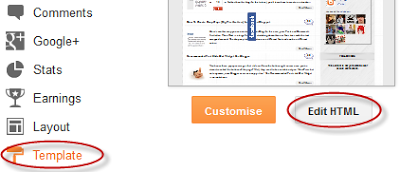
Step 2. Click anywhere inside the code area and press the CTRL + F keys to open the Blogger search box

Step 3. Find the following tag in your template:
Step 4. Just above ]]></b:skin> add the following CSS styling:
Comment Bubbles
You can choose one of the images below - right click on the image you like and select "Copy Image Address/Location", then replace the blue code from step 4 with the address you just copied.


That's it! Enjoy!!! (:
Do you need to add more info on your blog posts? Then I recommend you reading this tutorial:
If you want to add a comment or speech bubble to your Blogger blog, then follow the next steps below:

Step 1. Log in to your Blogger Dashboard > go to Template > click the Edit HTML button
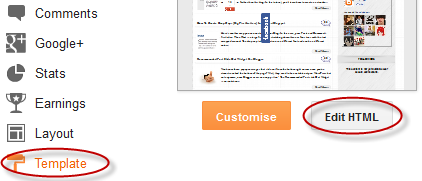
Step 2. Click anywhere inside the code area and press the CTRL + F keys to open the Blogger search box
Step 3. Find the following tag in your template:
]]></b:skin>Note: before anything, you need to click on the small arrow next to it and after the code has expanded, search for the ]]></b:skin> tag again
Step 4. Just above ]]></b:skin> add the following CSS styling:
.comment-bubble {Step 5. Now find this code:
float : right;
width : 48px;
height : 48px;
background : url(https://blogger.googleusercontent.com/img/b/R29vZ2xl/AVvXsEicQKmn7CDkRx26SLPw_FZbeTAREcrRixDSgcua3poKkV4SY6_E8KLxympVcElH6V6kKFF1-ZC24VNyDw0EdCt1OigLx0JPlCln_jiIj_ZNMo1otaMYtdt2Dm7Yy092JIWYcdsqO36fVqw5/s1600/speech+bubble+green.png);
background-repeat: no-repeat;
font-size : 18px;
margin-top : -15px;
margin-right : 2px;
text-align : center;
}
<b:if cond='data:post.title'>Note: If you can't find it, search this code instead:
<h3 class='post-title entry-title'>
<b:if cond='data:post.title'>Step 6. And add this code immediately after it:
<h3 class='post-title entry-title' itemprop='name'>
<b:if cond='data:post.allowComments'>Note:
<a class='comment-bubble' expr:href='data:post.addCommentUrl' expr:onclick='data:post.addCommentOnclick' style='color: #ffffff; font-size: 18px; font-weight: bold;'><data:post.numComments/></a>
</b:if>
- to change the color of the comments number, replace #ffffff with the hex value of your color;
- to change the font size, increase/decrease the 18px value;
Comment Bubbles
You can choose one of the images below - right click on the image you like and select "Copy Image Address/Location", then replace the blue code from step 4 with the address you just copied.
That's it! Enjoy!!! (:
Do you need to add more info on your blog posts? Then I recommend you reading this tutorial:

cooooooooooooooool
ReplyDeleteGreat script for bubble count.Yeah bubble counter button makes blog more attractive.Thanks for sharing step by step information of adding bubble counter button.
ReplyDeletenice post thnx for sharing:
ReplyDeleteEarn Money Online - SEO Tips - Free Backlink
...I want to do this but I cannot find either of the two codes in step 4 in my expanded widget template...
ReplyDeleteHello Amber,
DeleteThen search for this code: <h3 class='post-title entry-title' itemprop='name'>
Hope it works
wow, I'm an idiot. I got it. Thank you very much. It looks great.
Deletewow, this cute..
ReplyDeletelike this
I follow all steps you mentioned but i didn't find bubble on my blog....please help me...
ReplyDeletehttp://techknowgalaxy.blogspot.in/
Actually i am using Facebook comment box..
ReplyDeletehow to remove the under line when hover?
ReplyDeletethanks so much! your site helped me more than any of the others!
ReplyDeleteYou're welcome dear. I'm happy that you find it useful :)
DeleteFinally got it to work! But I was wondering how to center the number inside the bubble ..
ReplyDeleteAny tips?
Here's what it looks like so far ... The number is closer to the top and not centered. ..
http://papaisapreacher.blogspot.com
thank you. i like this widget.
ReplyDeletethank you :). btw, how to change the font colour?
ReplyDeleteI'm sorry, now I've updated my post. Add the code in red from step 5 followed by the apostrophe (') then change #ffffff with the hex value of your color. Hope it works, thanks for visiting!
Deletedoes this works for disqus comments as well ? I'm not using the default comment system provided by blogger, but i want to display comment bubble. Help!
ReplyDeleteI can't get this to work. :( Reason being ~ I can find either of the codes in Step 4. I did see where you commented and gave another code- I cant find that either. :(
ReplyDeletePlease help. I am just using a Simple Template in Blogger if that helps...no special template or fancy coding. Thanks in advance!!!! <3
Do you know how to make the link go to #comments and not #comment-form? Thanks!
ReplyDeletenice. thanks.... :D
ReplyDeleteVery god. I want to move down the text. How do i do it?
ReplyDeleteI got is right, but is only the bubble showing. the number of comments not showing in the bubble
ReplyDeleteThis is cute but for some reason my numbers aren't central to my speech bubble. Do you know why this is?
ReplyDeleteHi, love your tutorials! Quick question - the bubble is appearing on my posts that already have comments but the ones with no comments have no bubble or comment link? any idea what i need to change?
ReplyDeletewww.thebearhut.blogspot.com
I have finally figured it out so please disregard my previous comment. Many thanks
ReplyDeletehey it wont work for me :(
ReplyDeleteThanks! This worked like a charm for me!
ReplyDeleteCan anyone help me center the number within the bubble?
Man, I played with this for awhile just to figure out how to center the number. OK, here is the solution. In the last code, after:
Deletefont-weight: bold;
Add this line right after it:
text-align: center; line-height: 23px;
Adjust the number according to your images. That'll should work.
Thank you! I thought I am going mad on this one, but your solution works great!
Deleteamazing site thanks for this.
ReplyDeleteHey, great tutorial but I have the same problem as everyone else -- how do we center the text in the speech bubble? Also can we move the bubble to the bottom of the post rather than the top right near the title? Thanks!
ReplyDeleteamazing tutorial, really makes it so easy! Thank you!!
ReplyDeleteVery good site. Thank you for your help.
ReplyDeleteGood tutor. I will us it in our coming blog of Puff and Pie.
ReplyDeleteThanks.....! Visit again to this post.
thank you so much for the tutorial. I have customize it, very attractive.
ReplyDeleteFor my blog don't work :(
ReplyDeleteWow... i think this blog is useful and keep blogger.
ReplyDeleteThanks for very informative tutorial.
On my blog there were two locations where I could paste the second chunk of code (the html) - if you twice Search and Find for the suggested text you should paste at the second location.
ReplyDeletehelo thanks for this site very good.
ReplyDeleteI followed your guide with above code but it doesn't show anything in my post.
ReplyDeletePlease help me.
I have followed it, but nothing is showing. What should I do?
ReplyDeleteits work for my blog! thank you very much for sharing this.
ReplyDeleteThis is not working for me. I have tried it a few times. I can not figure out if I am doing the code part rite.I find the codes fine and then I put them in correctly but I still can't see the bubbles in the preview.
ReplyDeleteI am using the newest version of blogger.Plus its a template I downloaded from btemplates.com
I've tried this several times, adding all the codes and such but the image of the bubble doesn't appear on the blog. Please help
ReplyDeleteNice sharing,...
ReplyDeleteI'll try it at my blog
Finally got it to work! But I was wondering how to center the number inside the bubble ..
ReplyDeleteAny tips?
Here's what it looks like so far ... The number is closer to the top and not centered. ..
http://maghrb.com/
very nice post...thanks for publishing...
ReplyDeleteReally informative post...
ReplyDeletei have tried more and more times, but the image of the bubble doesn't appear on my blog. Can some plz help me for the same.
ReplyDeleteHey I have tried to implement this feature, but had no success. First of all, the bubble appears on the wrong place and I cannot remove it. I have tried to delete the code from here but it didn't work. My blog is http://sommelierschool.blogspot.com/
ReplyDeleteCould you help me somehow?
Thanks in advance.
P.S.
This is great blog, thank you!
I want to add a "comments" box at http://music4you.weebly.com
ReplyDeletethis is Tutorial very good, and i knew about it.
ReplyDeleteThank's
Thanks for this, works great but wondered if Google+comments can be included in comment count.
ReplyDeleteThanks
thanks for the article
ReplyDeleteFinally got it to work! But I was wondering how to center the number inside the bubble ..
ReplyDeleteAny tips?
thanks
ReplyDeleteHello! I love your tutorials! Quick question - the bubble is appearing on my posts that already have comments but the ones with no comments have no bubble or comment link? any idea what i need to change? Thanks.
ReplyDeleteI am using Google Plus comments. Then Can I use this in my blog ?
ReplyDeleteWill this counter count the number of Google Plus comments ?