This cool Blogger trick will help you to add comment count inside a speech bubble, so that you & your readers can use the numbers to mention or point to a particular comment on any of your posts. Besides this, numbering your comments might help you to improve the look and feel of your blog.
Note: This works with the previous blogger commenting system, so if you want to apply this trick, first you need to remove the Blogger threaded comments. See here How to remove Blogger threaded comments
UPDATE! Now you can have a comment bubble in your threaded comments also! For more info, please read this tutorial: How to Add Numbered Comments In Threaded Comments


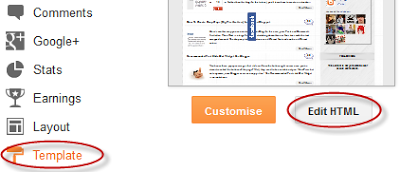
Step 1. From your Blogger Dashboard, go to Template and click on the Edit HTML button:
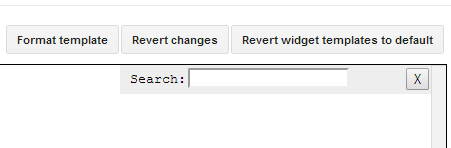
Step 2. Click anywhere inside the code area and press the CTRL + F keys to open the search box:
Step 3. Type or paste the following code inside the search box and hit Enter to find it:
Note:
Comment Bubbles
To choose a comment bubble, right-click on the image and select "Copy Image Address/Location":


IMPORTANT: You can use any image instead of the one linked in the code above (STEP 8) but after you need to change the size values (width and height), so that the numbers inside the bubble won't float outside of it.
Step 9. Save the template and enjoy your comments :]
Related tutorial: Add a Comment Bubble to Blogger Post Titles
Note: This works with the previous blogger commenting system, so if you want to apply this trick, first you need to remove the Blogger threaded comments. See here How to remove Blogger threaded comments
UPDATE! Now you can have a comment bubble in your threaded comments also! For more info, please read this tutorial: How to Add Numbered Comments In Threaded Comments

How to add numbered comments on our Blogger/Blogspot blog

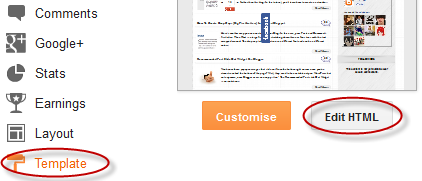
Step 1. From your Blogger Dashboard, go to Template and click on the Edit HTML button:
Step 2. Click anywhere inside the code area and press the CTRL + F keys to open the search box:
Step 3. Type or paste the following code inside the search box and hit Enter to find it:
<b:loop values='data:post.comments' var='comment'>Step 4. Just above it, paste this code:
<script type='text/javascript'>var CommentsCounter=0;</script>Step 5. The, find this code:
<data:commentPostedByMsg/>Step 6. And just below/after it, copy and paste this:
<!--comments-count-starts-->Step 7. Find (CTRL+F) this tag:
<span class='comments-number'>
<a expr:href='data:comment.url' title='Comment Link'>
<script type='text/javascript'>
CommentsCounter=CommentsCounter+1;
document.write(CommentsCounter)
</script>
</a>
</span>
<!--comments-count-stops-->
</head>Step 8. Just above the </head> tag, paste this code:
<!-- comments-count-starts-->
<style type="text/css">
.comments-number a:link, .comments-number a:visited {
color: black !important;
text-decoration: none !important;
background: url(https://blogger.googleusercontent.com/img/b/R29vZ2xl/AVvXsEjkrX7Z3O7n2w33_Uw_MzrBMOoandvObdrGv37aHdAc8aNbl9Sow7dvPpp0ioSU5UTOLAyzV5OImsZ2AlUCyPgKSKfZaPUKG3mxDlTRzbKkZyGHe5rkzM4z7jcS4quqnhFDlqW3bNBgVYD-/s1600/comment+bubble+1.png) no-repeat;
width: 50px; /*image-width size*/
height: 48px; /*image-height size*/
float: right;
display: block;
margin-right: 5px;
margin-top: -15px; /*comments-counter position*/
text-align: center;
font-family: 'Century Gothic','Lucida Grande',Arial,Helvetica,Sans-Serif;
font-size: 15px;
font-weight: normal;
}
.comments-number a:hover, .comments-number a:active {
color: #1BA0E1 !important;
text-decoration: none !important;
}
</style>
<!-- comments-count-stops-http://helplogger.blogspot.com-->
Note:
- To change the comment bubble, replace the text in red from above with your address
- To change the color of the numbers, replace the text in blue with the hex value of your color. This tool can help you to pick up any color that you may need: Color code generator
Comment Bubbles
To choose a comment bubble, right-click on the image and select "Copy Image Address/Location":
IMPORTANT: You can use any image instead of the one linked in the code above (STEP 8) but after you need to change the size values (width and height), so that the numbers inside the bubble won't float outside of it.
Step 9. Save the template and enjoy your comments :]
Related tutorial: Add a Comment Bubble to Blogger Post Titles


hmm... this didn't work for me. Does this not work when you have comments in a separate page?
ReplyDeleteHi Becky, if you have threaded comments enabled it does not work but it should work with the old comment system. Please verify if you have added the codes at the right places
DeleteHi, I am using a simple blogger template and I can't find any of the codes listed here. I have tried everything, if you could help me that would be great.
ReplyDeletei think becky m means "does this not work when you have "pop up window" comments.
ReplyDeletewhat's the answer?
I tried this on my blog, and everything seems to work fine except that the numbers don't show up in the bubble. Do you have any idea why that might be and what I can do to fix it? I don't have a standard blogger template, mine was customized.
ReplyDeleteYay!!!! Finally a tutorial that works on numbering blog comments!!! I just created a newer blog and couldn't get any of the tutorials online to work. I think the whole problem with the others was that no other directed me to remove the blogger threaded comments. Will be doing a link to this post on my blog. Thank you so much!!!
ReplyDeleteBBD
Anyone know how do i make my last comment to be first in list ?
ReplyDeleteSorry my english .
I try to explain what i want
So my post has 200+ comments and i want to see the last comment ,first !
Can't get it to work for me. Do I have to disable avatar pics for it to work?
ReplyDeleteNope. You have threaded comments on your blog. This tutorial should work for you: Link
DeleteHope it helps :)
i don't found the code that mentioned in step 4 >.<
ReplyDeleteThanks its very helpful :)
ReplyDeleteYour blog is awe-inspiring. I have found many new things. Your way of staging is also fascinating. You have elected very incredible topic. I appreciate it.
ReplyDeleteYour blog seems to be good..Thanks for sharing..!!
ReplyDeleteit interview questions
For some unknown reason, this awesome tweak (ie to get numbered comments) is just not working for me no matter how hard I've tried. And yes, I am using threaded comments. I really couldn't tell you why this is the case. My only guess is that since I am in the habit of trying all sorts of random tweaks and customizations I happen to fancy, it may be that one of the tweaks I already have in place (saved) is preventing this from taking effect.
ReplyDeleteYour awesome!
ReplyDeleteGreat Post, thank you for sharing :)
ReplyDeletewanna try it
ReplyDeletethanks
Very nice post!! , thank you for sharing. I have gone for it for my blog but numbers are not displaying in bubbles.
ReplyDeleteI tried this on my blog, and everything seems to work fine except that the numbers don't show up in the bubble. Do you have any idea why that might be and what I can do to fix it? I don't have a standard blogger template, mine was customized.
ReplyDeletei dosent work for me :/
ReplyDeleteThank you for taking the time to share this tutorial. Numbered comments will be very helpful. I do not see the 'Expand Widget Template' when I am in Edit HTML and when I try paste the code in step 3 into the ctrl box, it shows 0 of 0. Is there a solution for this? Thanks again!
ReplyDeleteThanks for sharing this amazing post with us. I will definitely try this one in my blogs.
ReplyDeleteGreat post! It is easy now to add coments.
ReplyDeleteI guess I am not smart enough. It doesn't change anything for me, so sad
ReplyDeleteI just tried this and nothing changed. I tried turning off the embed comments, and it still didn't work.
ReplyDeletenever heard of it. It is really awesom
ReplyDelete